Prerequisites
- Podman is installed on your system.
- You are logged into a Red Hat OpenShift 4 cluster with administrator permissions.
Deploying the pattern
Fork the rag-llm-cpu Git repository.
Clone the forked repository by running the following command:
$ git clone git@github.com:your-username/rag-llm-cpu.gitNavigate to the root directory of your Git repository:
$ cd rag-llm-cpuCreate a local copy of the secret values file by running the following command:
$ cp values-secret.yaml.template ~/values-secret-rag-llm-cpu.yamlCreate an API token on HuggingFace.
Update the secret values file:
vim ~/values-secret-rag-llm-cpu.yamlNOTE: Update the value of the
tokenfield in thehuggingfacesection with the API token from the previous step. By default, this pattern deploys Microsoft SQL Server as a retrieval-augmented generation (RAG) database provider. Update thesapasswordfield in themssqlsection. If you plan to use other database providers, update those secrets.To install the pattern without modifications, run the following commands:
$ ./pattern.sh oc whoami --show-consoleThe output displays the cluster where the pattern will be installed. If the correct cluster is not displayed, log into your OpenShift cluster.
$ ./pattern.sh make installArgoCD deploys the components after you run the install command. To check the status of the components after the installation completes, run the following command:
$ ./pattern.sh make argo-healthcheckTo make changes to the pattern before installation, such as using different RAG database providers or changing the large language model (LLM), see Configuring this Pattern.
Verifying the installation
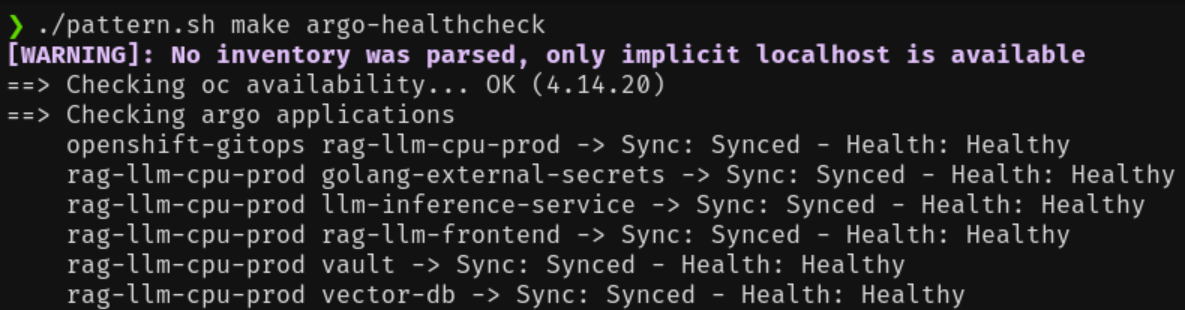
Confirm that all applications are successfully installed:
$ ./pattern.sh make argo-healthcheckIt might take several minutes for all applications to synchronize and reach a healthy state because the process includes downloading the LLM models and populating the RAG databases.
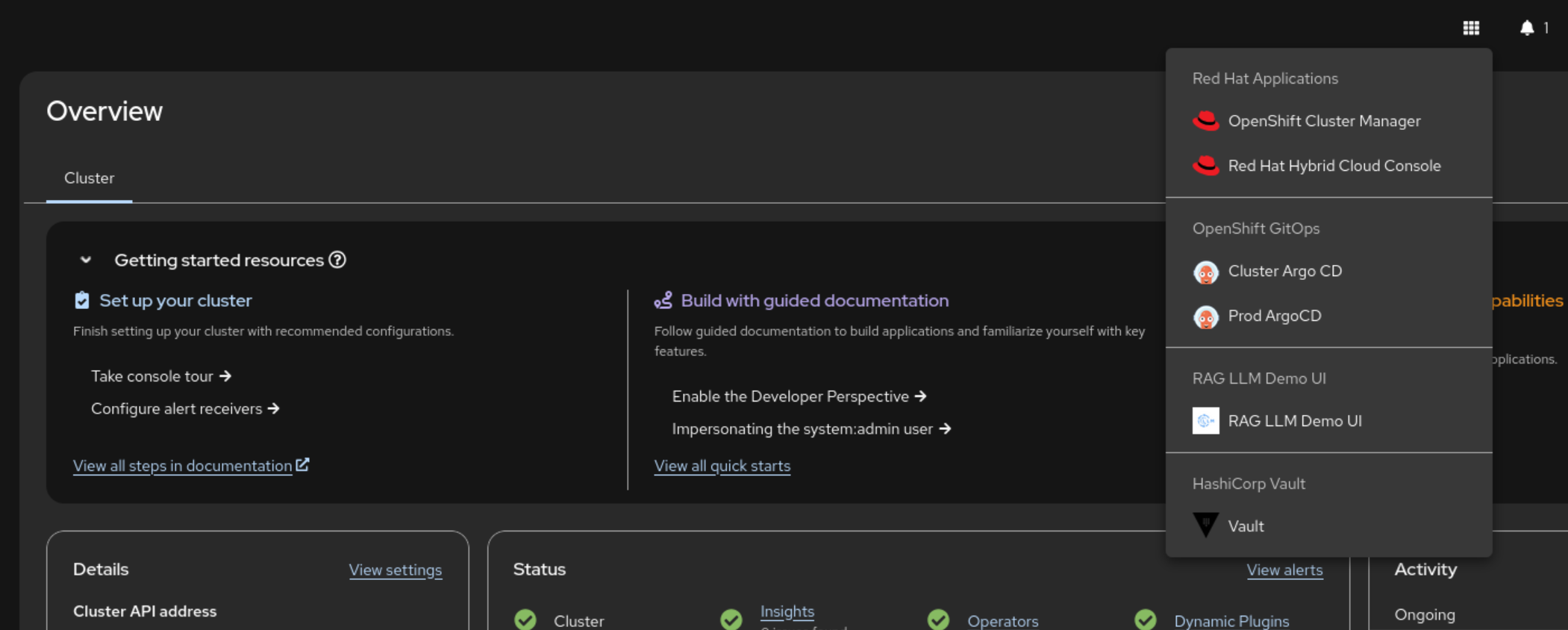
Open the RAG LLM Demo UI by clicking the link in the Red Hat applications menu.
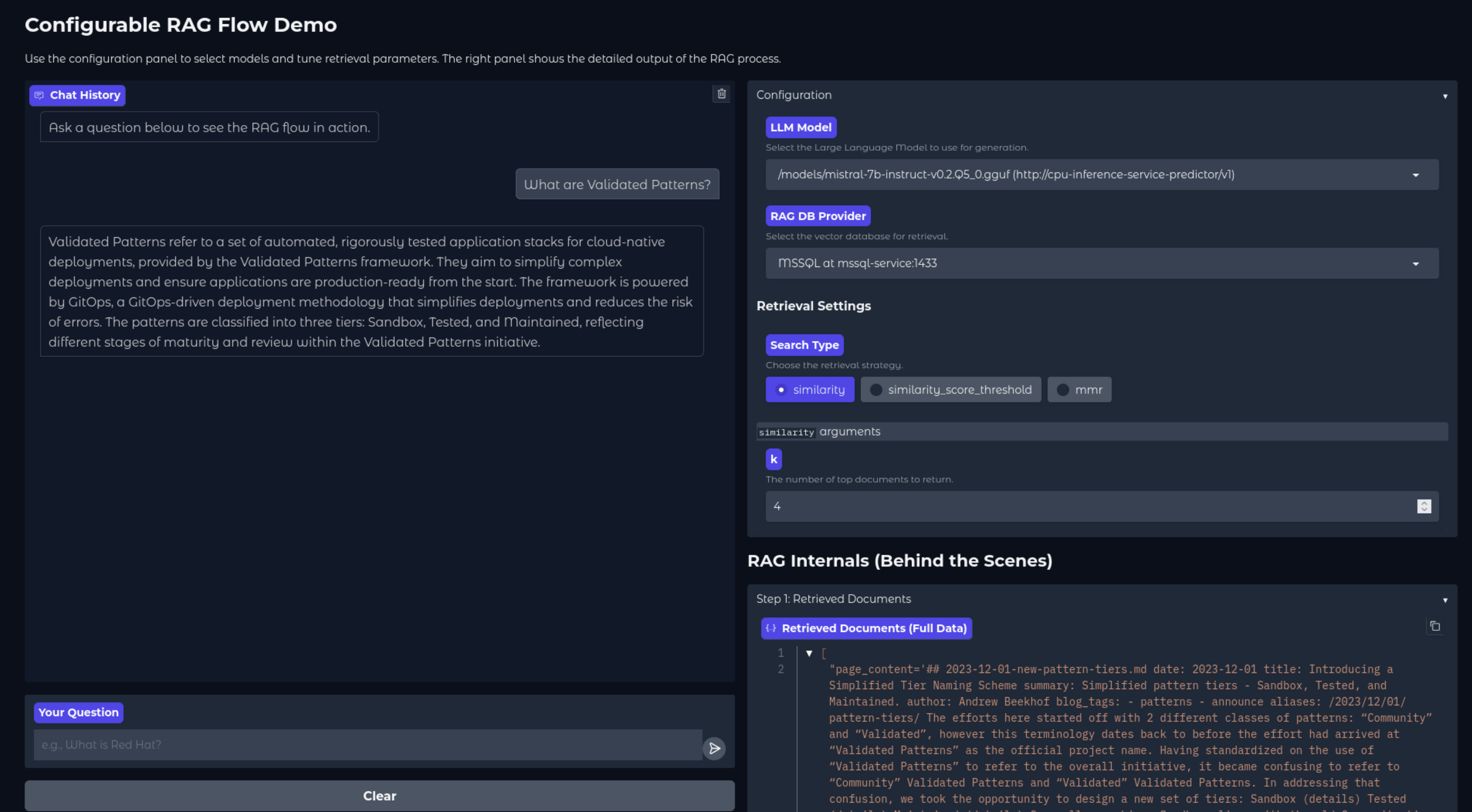
Confirm that the configured LLMs and RAG database providers are available. Verify that a query in the chatbot triggers a response from the selected RAG database and LLM.
NOTE: The CPU-based LLM might take approximately one minute to start streaming a response during the first query because the system must load the data into memory.
Next Steps
After the pattern is running, you can customize the configuration. See Configuring this Patternfor information about changing the LLM, adding RAG sources, or switching vector databases.
