Core Concepts
|
Creation Process
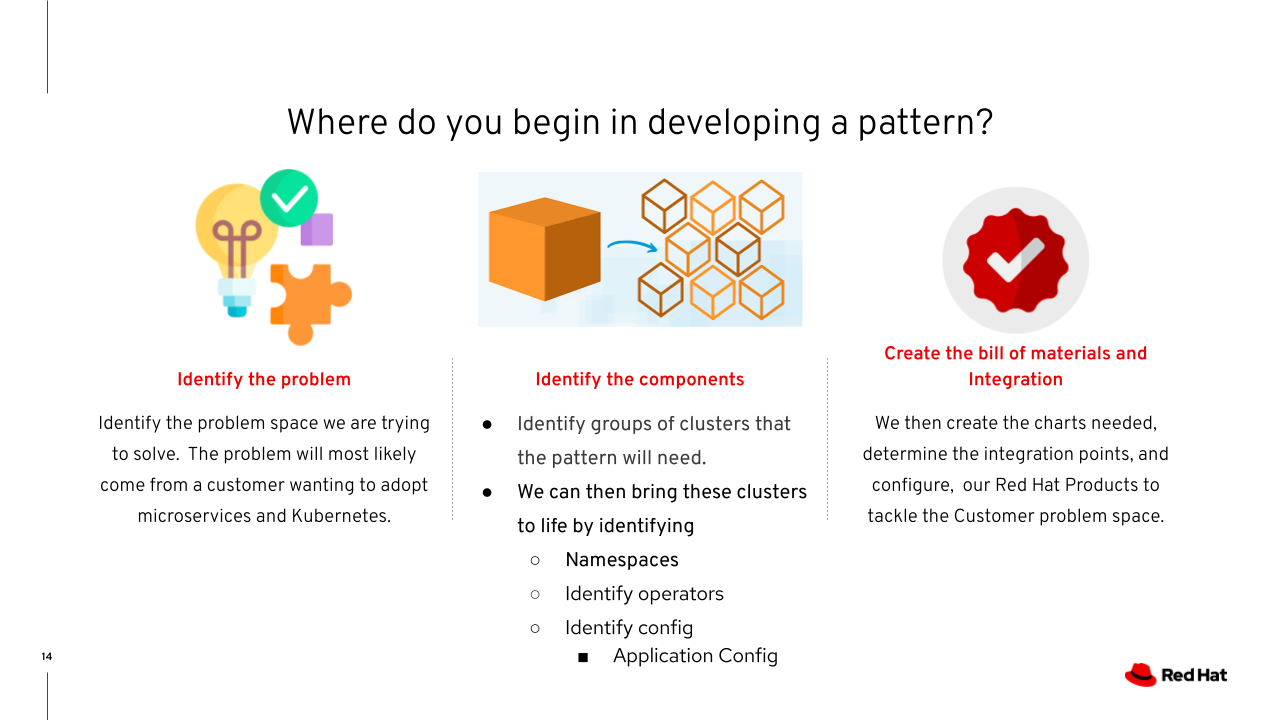
One of the first things we should do before embarking on creating a pattern is to identify a problem to solve. This can come from an existing customer problem or an idea on how we can showcase some of our Red Hat products working together. You can use one of our simplest validated patterns, multicloud gitops, as a starting point by using the template to create a new Git repository in your local GitHub account. You might already have an existing demo that you can use and convert it to use the Validated Pattern framework.
The next step is to identify the technology components that you will need. In the case of an existing demo you might already know which components are part of the pattern.
The final step is to ensure that the configuration of those components, and the integration points, are handled in the pattern.
Setting up naming
There are two names that exist a pattern: The pattern name and the clusterGroup name.
Best practice is to align pattern with the repository title as it drives file naming for secrets file: values-secrets-{pattern}.yaml
clusterGroup is most relevant when you have multiple clusters. Otherwise you can rely on the default hub group.
  global:
    pattern: multicloud-gitops
    options:
      useCSV: false
      syncPolicy: Automatic
      installPlanApproval: Automatic
  main:
    clusterGroupName: hub
Adding to the Bill of materials
There are three major resources you can add: Operators, Applications (helm charts) and ansible (imperative) scripts.
Introducing new operators
Operators can be simply added to the clusterGroup as subscriptions
  subscriptions:
    acm:
      name: advanced-cluster-management
      namespace: open-cluster-management
      channel: release-2.9
    s3:
      name: ack-s3-controller
      namespace: ack-system
      channel: alpha
      source: community-operators
    cte:
      name: cte-k8s-operator
      namespace: openshift-operators
      channel: stable
      source: certified-operators
To find the correct names the easiest way to do this is to jump into the console, find the operator, get to the install screen
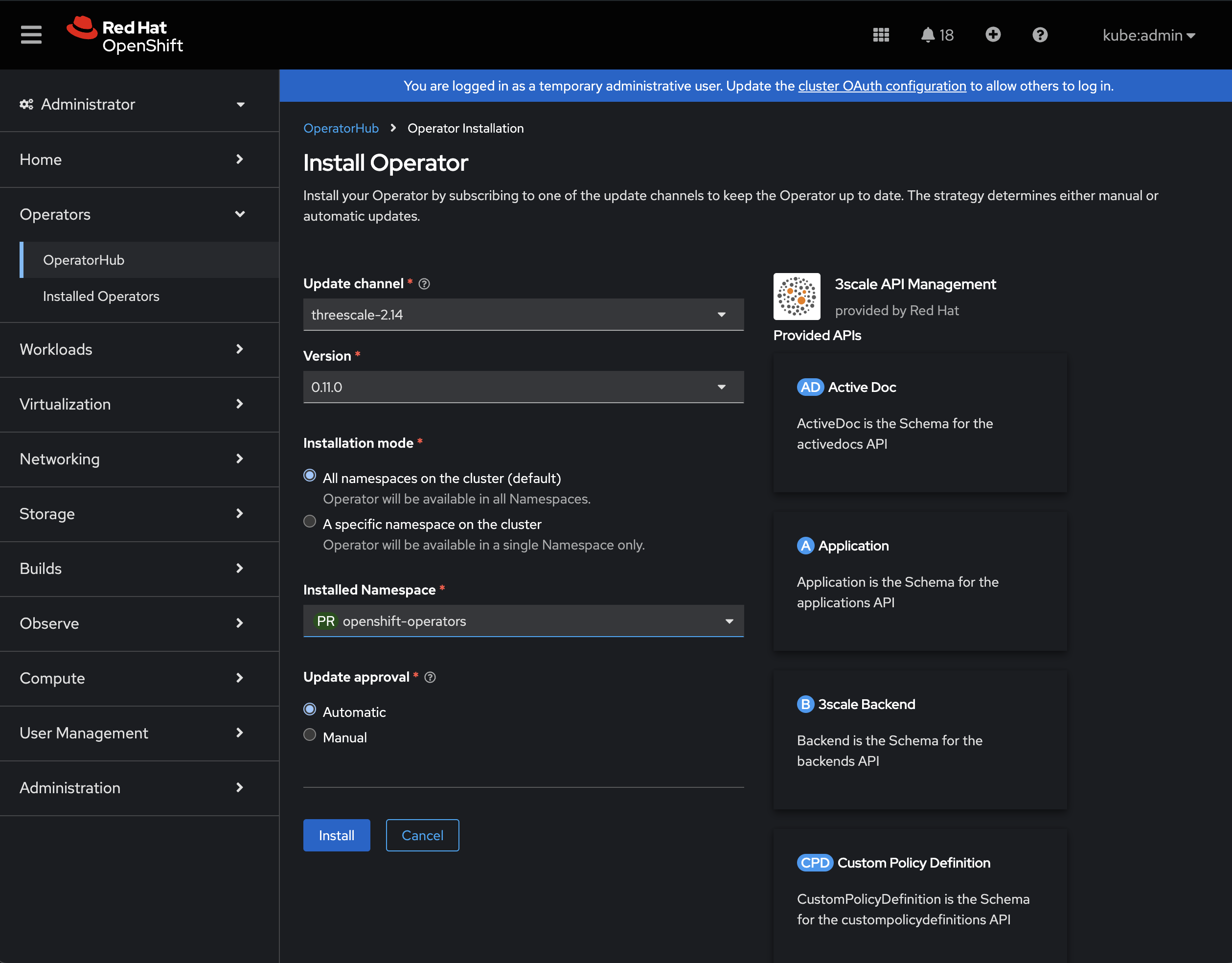
The URL at this point can be used to pull out the name (pkg), catalog, channel etc.
Introducing new helm charts
The easiest way to start with new helm charts is to copy and paste from the example charts in multicloud-gitops. Each helm chart gets added as an argoCD application:
  applications:
    golang-external-secrets:
      name: golang-external-secrets
      namespace: golang-external-secrets
      project: hub
      path: common/golang-external-secrets

    cnv: # arbitrary
      name: cnv # name of argoCD applcation
      namespace: openshift-cnv
      project: cnv # argoCD project
      path: charts/all/cnv # relative path to the chart
Convention puts the helm charts for the validated-pattern under charts/.
Chaining configuration into the charts.
One key element of validated patterns is a structured set of variable overrides. These overrides are key to allowing the template to be kept as 'DRY' as possible when configuring. For this context it’s important to understand the evaluation order:
The default values defined in the chart (or sub charts).
values-global.yamlfileValues within clusterGroup files (e.g. `values-hub.yaml)
Values override files with precedence for the (top/bottom) of the valid list
Values overrides shown in individual application definitions
Default files installed in a chart
All helm charts MUST contain a values.yaml file.
Values that are defined here should be considered the 'base' consideration.
While it’s possible to not define a value here, yet use it in the chart, it is strongly recommended sensible defaults are included.
values-global.yaml file
Values here are applied to every argocd application as it is picked up directly by the validated patterns operator.
The values here are also usable in the clusterGroup files
ClusterGroup files overrides
Values can directly be used within the context of files such as values-hub.yaml
  letsencrypt:
    region: ''
    server: https://acme-v02.api.letsencrypt.org/directory
    # staging URL
    # server: https://acme-staging-v02.api.letsencrypt.org/directory
    email: chris@thebutlers.me
  clusterGroup:
    name: hub
    isHubCluster: true
Values override files
clusterGroup`s define an override file list which is evaluated in order.
The cluster overrides files can take of the variables defined in `values-global.yaml
as well as metadata assembled by the operator, OpenShift and Red Hat Advanced Cluster Management for Kubernetes.
These dynamic variables allow abstraction from variability between OpenShift installation. storageClasses varying across clusterPlatform is a clear example.
The order of operations can be changed based on uses requirements easily with the list.
  overrides:
    - '/overrides/values-{{ $.Values.global.clusterPlatform }}.yaml'
    - '/overrides/values-{{ $.Values.global.clusterPlatform }}-{{ $.Values.global.clusterVersion }}.yaml'
    - '/overrides/values-{{ $.Values.global.clusterPlatform }}-{{ $.Values.clusterGroup.name }}.yaml'
    - '/overrides/values-{{ $.Values.global.clusterVersion }}-{{ $.Values.clusterGroup.name }}.yaml"
Discovery activity: Logging into console for the cluster OpenShift gitops.
Examine the root application to discover what variables have been provided to ArgoCD.
Individual application overrides
Individual applications should be reserved for use-cases where there is risk of conflict across multiple charts in the same application group. They should be viewed as absolutely hard coded into the pattern.
  applications:
    coffeeshop-test:
      name: quarkuscoffeeshop-demo
      namespace: quarkuscoffeeshop-demo
      project: quarkuscoffeeshop-demo
      path: charts/store/quarkuscoffeeshop-charts
      overrides:
      - name: ocp_auth.bind_dn
        value: "uid=ldap_admin\\,cn=users\\,cn=accounts\\,dc=redhatlabs\\,dc=dev"
      - name: ocp_auth.bind_password
        value: "supersecret"
Using Patternizer to create new patterns
When creating new patterns you have two options: you can either fork an existing pattern and modify it to suit your purpose or start a new pattern from scratch.
The patternizer tool exists to expedite starting a pattern from scratch.
To create a new pattern you merely need to run podman run --pull=newer -v "$PWD:$PWD:z" -w "$PWD" quay.io/validatedpatterns/patternizer init --with-secrets (you can omit the --with-secrets if you don’t need to use the secrets framework.)
On an empty directory, named workshop-pattern, this currently produces the following files:
workshop-pattern
├── ansible.cfg                 # the default ansible configuration
├── Makefile                    # a stub Makefile which includes Makefile-common
├── Makefile-common             # where all the common commands (install, load-secrets, etc) live
├── pattern.sh                  # the convenvience utility container (has oc, helm, makefile, etc)
├── values-global.yaml          # names the pattern based on the directory and sets common defaults
├── values-prod.yaml            # contains the components for using the secrets framework
└── values-secret.yaml.template # a stub for the secrets file
The values-global.yaml contains
global:
  pattern: workshop-pattern
  singleArgoCD: true
  secretLoader:
    disabled: false
main:
  clusterGroupName: prod
  multiSourceConfig:
    enabled: true
    clusterGroupChartVersion: 0.9.*
and the values-prod.yaml contains
clusterGroup:
  name: prod
  namespaces:
    - workshop-pattern
    - vault
    - external-secrets-operator:
        operatorGroup: true
        targetNamespaces: []
    - external-secrets
  subscriptions:
    eso:
      name: openshift-external-secrets-operator
      namespace: external-secrets-operator
      channel: stable-v1
  applications:
    openshift-external-secrets:
      name: openshift-external-secrets
      namespace: external-secrets
      chart: openshift-external-secrets
      chartVersion: 0.0.*
    vault:
      name: vault
      namespace: vault
      chart: hashicorp-vault
      chartVersion: 0.1.*
Shell Function You can add a simple shell function to your shell config file (ex Now you can more simply run |
Idempotency The |
